

Getting started
With the release of Coherent Assistant, Spark Assistant will only be receiving minor updates. We suggest users to use Coherent Assistant which has a new interface and helpful features.
With Spark Assistant, you can connect Excel files to Spark without opening a browser. Whether you are looking to upload efficiently, error-handle files, compare service versions, or even automate steps to configure your file, Spark Assistant is here to help!
The Excel add-in can be installed from the Microsoft AppSource marketplace or with a manifest file. Follow the steps in Install the Spark Assistant to have the add-in appear in Excel.
Key activities include:
Log in to Spark Assistant
Once Spark Assistant has been installed, you will see the icon at the top right corner of your Excel ribbon under the "Home" tab.
Click the icon to open Spark Assistant in a side panel.
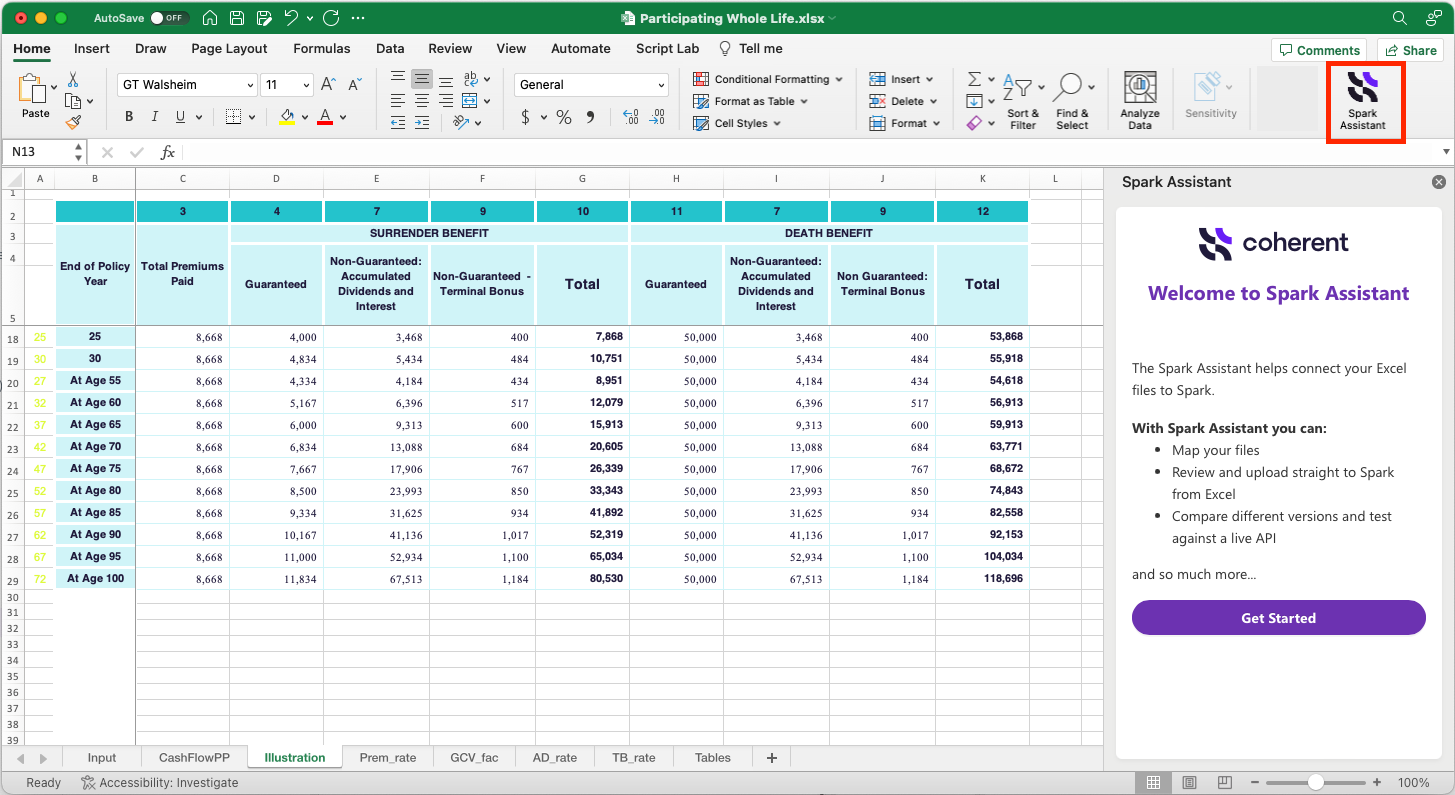
Click Get Started.
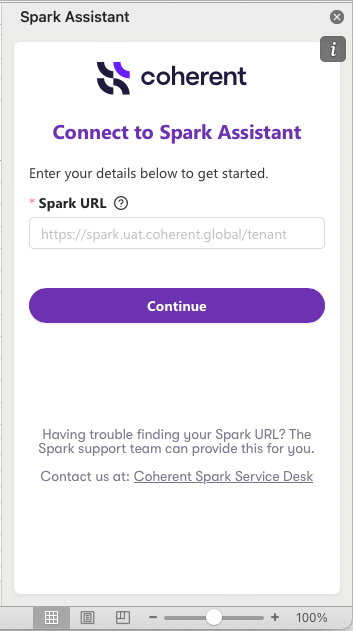
Add the Spark URL: This can either be the domain URL you use to reach Spark on the web (can also add any URL from Spark once you've logged in) or the endpoint URL of any service you have active on Spark.
The Spark URL has a syntax:
https://spark.[environment].coherent.global/[tenant]
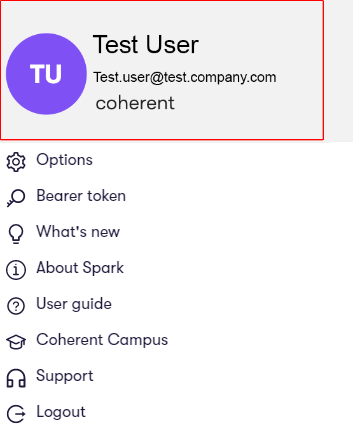
The tenant name can be found on your Spark account under your email:
Click on Continue
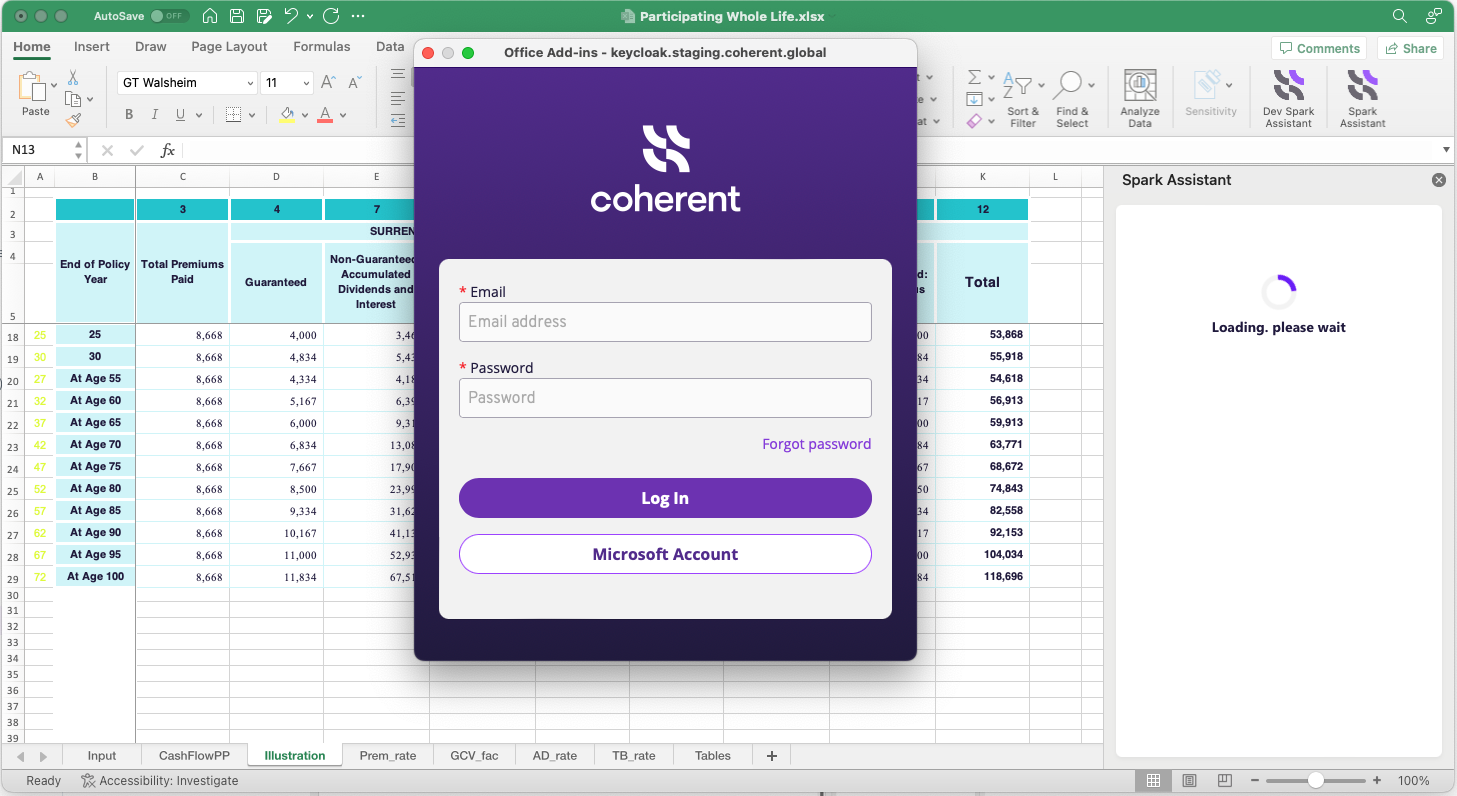
On the Log-in screen, enter your credentials and click Log in.
Map inputs and outputs
Follow the instructions in Get started in 5 minutes in the User guide. For specific information about how Spark Assistant can assist you in the process, see Build Mode.
Check for warnings or errors
Once your file has been mapped, run a quick test on the file and see if any issues may arise from the upload of this Excel service.
Go back to the Home Menu
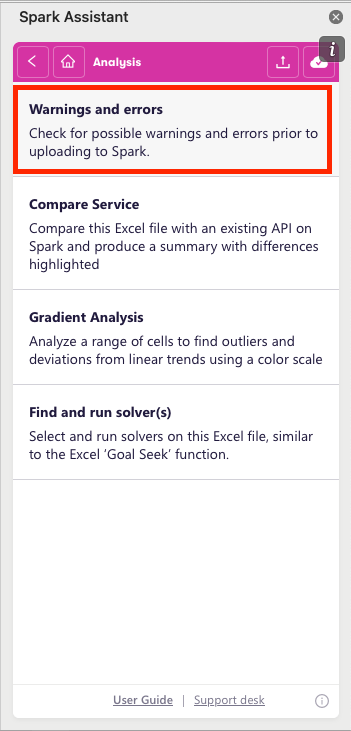
Click Analysis Mode
Choose Warnings and errors.
For more information, see: Check for Warnings and Errors
Upload your service to Spark
Full upload (new services)
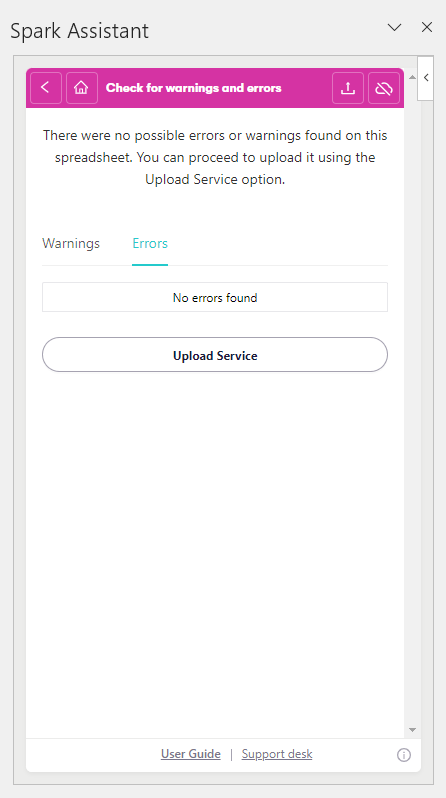
If there are no warnings or errors, the Spark Assistant will prompt an upload to Spark. This means that the file can be uploaded successfully to Spark. Click Upload Service.
Quick upload (existing services)
To upload your Excel file, click on the upload icon in the top right corner of the Spark Assistant.
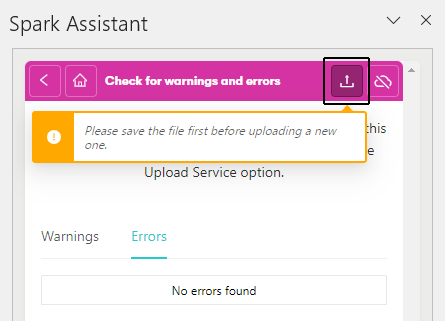
If your file has been previously uploaded using Spark Assistant or downloaded from Spark as a configured engine, click One step upload.
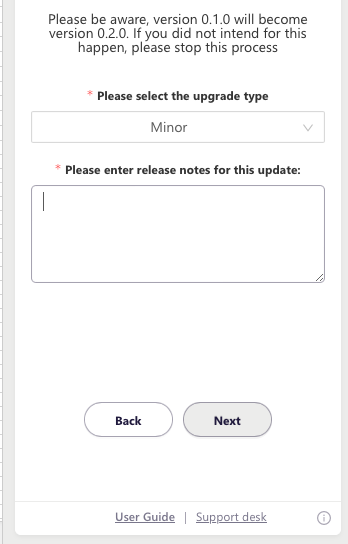
The Spark Assistant will ask for the upgrade type (Major, Minor, or Patch) and release notes in order to version up the service.
After entering a release note, click Upload.
Your file is now uploaded to Spark!
Last updated