> For the complete documentation index, see [llms.txt](https://docs.coherent.global/llms.txt). Markdown versions of documentation pages are available by appending `.md` to page URLs; this page is available as [Markdown](https://docs.coherent.global/build-spark-services/how-to-prepare-an-excel-file-for-spark/excel-tips.md).
# Excel tips
## Optimize spreadsheets
### Workbook construction
* See [#excel-performance-resources](#excel-performance-resources "mention").
* Minimize the number of worksheets.
* Remove unnecessary external links or break them all together to reduce the chance of intended behaviors.
* For large static tables, use [paste values](https://support.microsoft.com/en-us/office/paste-options-8ea795b0-87cd-46af-9b59-ed4d8b1669ad) for any formulas to eliminate unnecessary calculations.
* For calculations that are repeated, try to reference the calculation once rather than having it repeated many times in the workbook.
* Try to keep the [last cell](https://support.microsoft.com/en-us/office/locate-and-reset-the-last-cell-on-a-worksheet-c9e468a8-0fc3-4f69-8038-b3c1d86e99e9) on each Excel sheet as close to `A1` as can to minimize file sizes.
* Try to keep a cell consistently a string or a number. Where this tends to occur would be around:
* Formulas such as `=IF(A2>B2, A2, "")` should be replaced with `=IF(A2>B2, A2, 0)`.
* Functions that trap errors such as [`IFERROR`](https://support.microsoft.com/en-us/office/iferror-function-c526fd07-caeb-47b8-8bb6-63f3e417f611) or [`IFNA`](https://support.microsoft.com/en-us/office/ifna-function-6626c961-a569-42fc-a49d-79b4951fd461).
* Data validation lists such as `1,2,3+`.
### Function usage
* Avoid [volatile](https://docs.microsoft.com/en-us/office/client-developer/excel/excel-recalculation#volatile-and-non-volatile-functions) functions as much as possible ([`INDIRECT`](https://support.microsoft.com/en-au/office/indirect-function-474b3a3a-8a26-4f44-b491-92b6306fa261), [`OFFSET`](https://support.microsoft.com/en-gb/office/offset-function-c8de19ae-dd79-4b9b-a14e-b4d906d11b66), etc.).
* Where possible, use sorted matches to improve performance for [`MATCH`](https://support.microsoft.com/en-us/office/match-function-e8dffd45-c762-47d6-bf89-533f4a37673a), [`VLOOKUP`](https://support.microsoft.com/en-us/office/vlookup-942f678a-1bfc-4ccf-8dfa-f5057ded5c65?ui=en-US\&rs=en-US\&ad=US), [`XMATCH`](https://support.microsoft.com/en-us/office/xlookup-function-b7fd680e-6d10-43e6-84f9-88eae8bf5929),[ `XLOOKUP`](https://support.microsoft.com/en-us/office/xlookup-function-b7fd680e-6d10-43e6-84f9-88eae8bf5929), etc.
* Ensure the data is sorted when using these parameters.
* Please be careful to exclude the header row from the `lookup_array` parameters.
* For worksheets that use a large number of lookups or sums, consider using [`SUMIFS`](https://support.microsoft.com/en-us/office/sumifs-function-c9e748f5-7ea7-455d-9406-611cebce642b) or [`XLOOKUP`](https://support.microsoft.com/en-us/office/xlookup-function-b7fd680e-6d10-43e6-84f9-88eae8bf5929) with an array of `criteria` or `lookup_value`s. This provides Spark with the opportunity to optimize the calculations collectively for better performance, see the below sample file.
* As an extension of the previous point, broader use of [Dynamic array formulas](https://support.microsoft.com/en-us/office/dynamic-array-formulas-and-spilled-array-behavior-205c6b06-03ba-4151-89a1-87a7eb36e531) is encouraged as it reduces repetitive formula entry in the workbook and is easier to optimize for performance.
* Where [Dynamic array formulas](https://support.microsoft.com/en-us/office/dynamic-array-formulas-and-spilled-array-behavior-205c6b06-03ba-4151-89a1-87a7eb36e531) cannot be used, for columnar formula ranges, dragging the formulas down using the bottom right handle is better than copying and pasting. This is more easily identified as the same formula range in the Excel XML.
* Whole-column references such as `=VLOOKUP(B1, A:A, 1, FALSE)` are not recommended.
* Avoid using a multiplication instead of [`IF`](https://support.microsoft.com/en-us/office/if-function-69aed7c9-4e8a-4755-a9bc-aa8bbff73be2), e.g. `=A1*B2*(C3=23)` should be rewritten as `=IF(C3=23,A1*B1)` to minimize the number of mathematical operations.
* Although Spark has extensive support for [`LAMBDA`](https://support.microsoft.com/en-us/office/lambda-function-bd212d27-1cd1-4321-a34a-ccbf254b8b67) functions and helpers such as ([`BYCOL`](https://support.microsoft.com/en-us/office/bycol-function-58463999-7de5-49ce-8f38-b7f7a2192bfb), [`BYROW`](https://support.microsoft.com/en-us/office/byrow-function-2e04c677-78c8-4e6b-8c10-a4602f2602bb), [`ISOMITTED`](https://support.microsoft.com/en-us/office/isomitted-function-831d6fbc-0f07-40c4-9c5b-9c73fd1d60c1), [`MAKEARRAY`](https://support.microsoft.com/en-us/office/makearray-function-b80da5ad-b338-4149-a523-5b221da09097), [`MAP`](https://support.microsoft.com/en-us/office/map-function-48006093-f97c-47c1-bfcc-749263bb1f01), [`REDUCE`](https://support.microsoft.com/en-us/office/reduce-function-42e39910-b345-45f3-84b8-0642b568b7cb), [`SCAN`](https://support.microsoft.com/en-us/office/scan-function-d58dfd11-9969-4439-b2dc-e7062724de29)`)`, minimizing the use of these functions helps to improve performance.
{% file src="/files/HRzJRXpYg114ETbUIPph" %}
### Tips for optimizing performance obstructions (from Microsoft)
To improve general performance, we recommend reviewing Microsoft's [Tips for optimizing performance obstructions](https://learn.microsoft.com/en-us/office/vba/excel/concepts/excel-performance/excel-tips-for-optimizing-performance-obstructions). Key takeaways for Spark users include:
* Avoid the use of forward reference to refer to cells that are to the right or below.
* Minimize the use of circular references with iteration ("unroll" them instead).
* Avoid links between workbooks.
* Minimize links between worksheets.
* Minimize the used range.
* Be aware that whole-column references may not be as performant.
* In lieu of multiple [`VLOOKUP`](https://support.microsoft.com/en-us/office/vlookup-942f678a-1bfc-4ccf-8dfa-f5057ded5c65?ui=en-US\&rs=en-US\&ad=US)s, consider using [`MATCH`](https://support.microsoft.com/en-us/office/match-function-e8dffd45-c762-47d6-bf89-533f4a37673a) and multiple [`INDEX`](https://support.microsoft.com/en-us/office/index-function-a5dcf0dd-996d-40a4-a822-b56b061328bd) functions.
* Keep array (a.k.a CSE/{}) formulas as small as possible, and consider using [`SUMPRODUCT`](https://support.microsoft.com/en-gb/office/sumproduct-function-16753e75-9f68-4874-94ac-4d2145a2fd2e) instead.
* Use comma syntax with [`SUMPRODUCT`](https://support.microsoft.com/en-gb/office/sumproduct-function-16753e75-9f68-4874-94ac-4d2145a2fd2e) ; using it with `*` is less efficient, especially for arrays.
* Avoid using Dfunctions like [`DSUM`](https://support.microsoft.com/en-us/office/dsum-function-53181285-0c4b-4f5a-aaa3-529a322be41b), [`DCOUNT`](https://support.microsoft.com/en-us/office/dcount-function-c1fc7b93-fb0d-4d8d-97db-8d5f076eaeb1), and [`DAVERAGE`](https://support.microsoft.com/en-us/office/daverage-function-a6a2d5ac-4b4b-48cd-a1d8-7b37834e5aee); use [`SUMIFS`](https://support.microsoft.com/en-us/office/sumifs-function-c9e748f5-7ea7-455d-9406-611cebce642b), [`COUNTIFS`](https://support.microsoft.com/en-us/office/countifs-function-dda3dc6e-f74e-4aee-88bc-aa8c2a866842), and [`AVERAGEIFS`](https://support.microsoft.com/en-us/office/averageifs-function-48910c45-1fc0-4389-a028-f7c5c3001690) instead.
* Avoid using complicated formulas and functions in defined names.
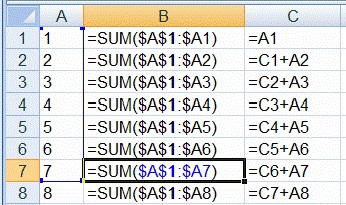
* Avoid using the [`SUM`](https://support.microsoft.com/en-us/office/sum-function-043e1c7d-7726-4e80-8f32-07b23e057f89) function for long chains of cumulative sums, as shown in Column B, below. Over 1,000 rows, using the formulas in Column C requires about 498,000 fewer calculations!
Image courtesy of learn.microsoft.com
## Define Named Ranges
[Named Ranges](https://support.microsoft.com/en-us/office/define-and-use-names-in-formulas-4d0f13ac-53b7-422e-afd2-abd7ff379c64) enable cell(s) to be referred to as a Name in formulas. These are important for Spark because they are used to identify cells with certain behaviors like inputs and outputs.
### Use the Name box
This creates a Name that can be used on every worksheet (Workbook scope).

1. Select the target cell(s).
2. Type the name in the Name Box.
### Use the *New Name* dialog (Ctrl+Alt+F3)
The *New Name* dialog to edit the name scope and add a comment to the Name.
|  |  |
| -------------------------------- | -------------------------------- |
1. Select the target cell(s).
2. From the Ribbon, choose the *Formulas* tab and click **Define Name**.
3. The *New Name* dialog appears.
### Use the *Name Manager* (Ctrl+F3)
The *Name Manager* can also be used to create, edit, delete, filter Names.
|  | |
| -------------------------------- | ------------------------------------------------------------------- |
1. Select the target cell(s).
2. Click the Ribbon *Formula* tab and select **Name Manager**.
3. A list of the currently defined Names on the workbook can be edited.
4. Click **New** which presents the same dialog box as [#use-the-new-name-dialog-ctrl+alt+f3](#use-the-new-name-dialog-ctrl+alt+f3 "mention").
### Create from Selection (Ctrl+Shift+F3)
*Create from Selection* makes it very easy to define a large block of names using a formula.
| | | |
| ------------------------------------------------------------------- | ------------------------------------------------------------------- | ------------------------------------------------------------------- |
1. Put the `Xinput` names beside the values.
2. Click the Ribbon *Formula* tab and select **Create from Selection**.
3. In this case because the proposed the names for the Named Ranges are on the left, choose *Left column*.
4. In this example, 4 `Xinput`s should be created.
## Identify cells with *Data Validation*
From the *Home* tab in the ribbon, click the *Find & Select* menu and choose *Data Validation*. The cells with Data Validation will be selected. To make it easier to identify these cells, apply a color fill to the selected ranges.

## Lookup optimizations
If performing large lookups, consider sorting the lookup column and using `XLOOKUP()`. See the example below.
{% file src="/files/4BObwn0nYc6tEkawOU5h" %}
## Excel performance resources
{% embed url="" %}
{% embed url="" %}
{% embed url="" %}
{% embed url="" %}
{% embed url="" %}
## Additional Excel resources
{% embed url="" %}
{% embed url="" %}
{% embed url="" %}
{% embed url="" %}
{% embed url="" %}
{% embed url="" %}